Tag Archives: organization

Coordinate Grid for iPads

27 May

image (13)

Geometry Pad is a fantastic free app for drawing on a coordinate plane on iPads.  Draw figures, add text and identify the points on the grid.  This app is great for teaching how to identify x and y values and creating your own polygons.

Check out my Common Core aligned iPad lesson plan for teaching geometry in your classroom.

iPad Reference Charts

24 May

One of my favorite reference charts is taped to my classroom’s iPad cart, and the other is prominently displayed in the front of the room.

My students email their classwork throughout the school year and this chart helps them remember what to do before hitting send:
photo (1)
There are plenty of lessons you can email in my Teacher Store!

Score Rubrics on Your iPad

11 Feb

photo (5)

If you use rubrics to grade student work you have to try ForAllRubrics! Once you set up your class list, this website allows users to import rubrics they’ve already made, or easily create new ones.  Open the site on your iPad and with a few taps you’ll have projects graded in no time.  It’s easy to access previous grades, print out data, and it’s free for teachers!

Here’s a Common Core aligned guide to creating Screencasts in your classroom (it has a rubric too!)

Organize Your iPad Cart

14 Jan

photo 2 (1)

photo 1 (1)

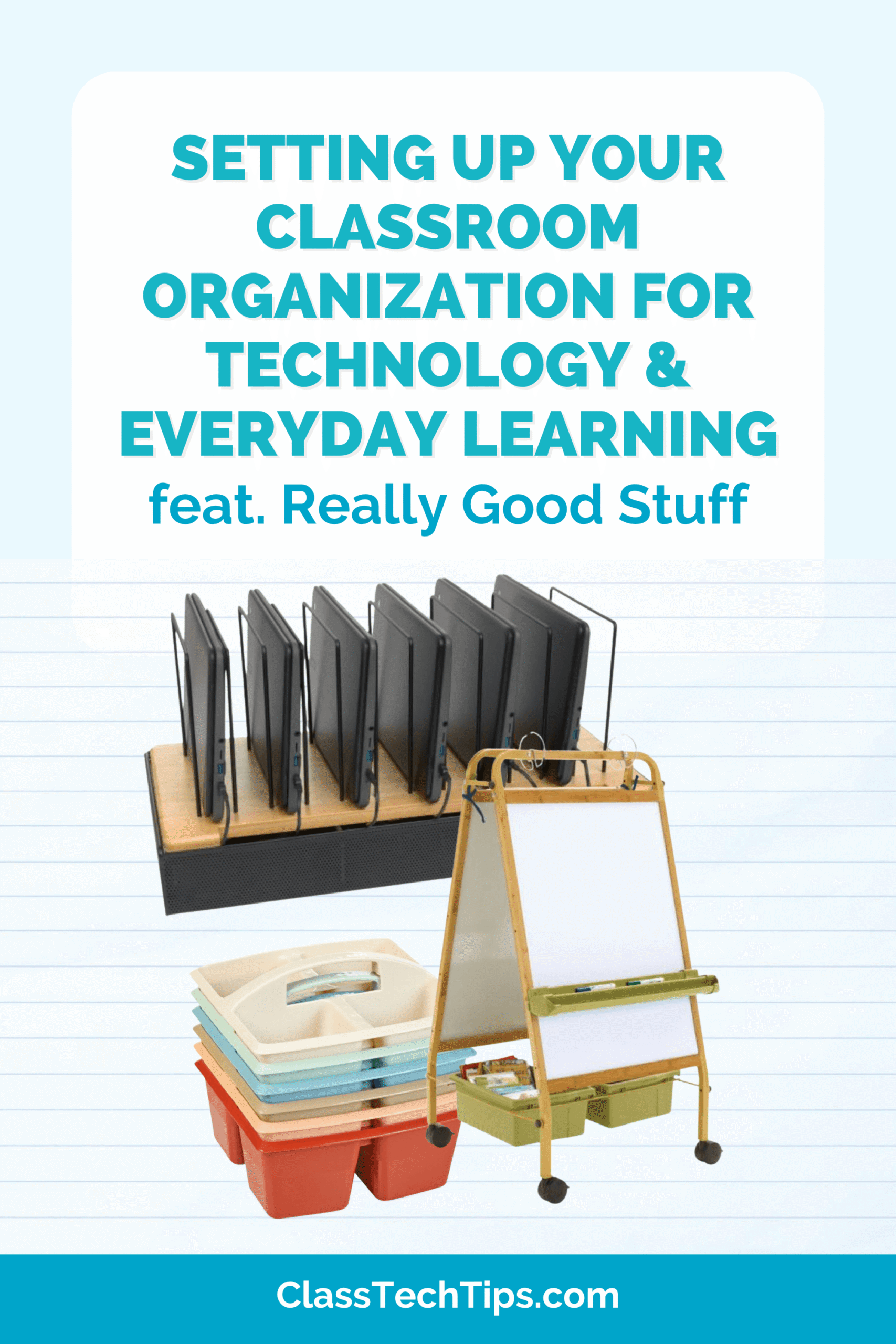
A lot of teachers have asked about the best way to organize their iPad cart.  I am lucky to work in a 1:1 school with a cart of iPads that stay in my classroom.

I label student iPads with numbers and names to make access and organization quick and easy.  The labels stay on the iPad case and I’m careful not to block the speakers or any other buttons.  I cover the paper labels in packaging tape to increase their longevity.  When I call students to remove or return their iPads from the cart I’ll often say, “All odd numbers,” “Even numbers only” or something that reinforces math skills at the same time.  I also put labels at the bottom of each slot so that the students can tell just by looking down into the cart exactly where each iPad belongs.

Here’s a reference chart I place on my iPad cartto show off the work going on in my classroom!

Dragon Dictation: Voice Recognition

24 Dec

photo-1

I like using Siri to record my conference notes and anecdotals.  I’ve listed the how-to’s and reasons why I use it, but if you don’t have access to Siri there are other options. Dragon Dictation is a free voice recognition app.  It allows you to speak into your iPad’s microphone and watch your voice turn into text.

Try Dragon Dictation in your classroom:

  • For students who need scribes
  • Documenting conference notes or anectodals
  • Compose emails and reminders on the go

Simple Grading Tools

17 Dec

Screen Shot 2012-09-16 at 11.32.04 AMScreen Shot 2012-09-16 at 11.32.29 AM

You may have used a slide rule in the past but here are two free iPad apps that make it easy to score test and quizzes.  Groovy Grader provide a percentage based on the number of questions on an exam.  eGrader HD will even assign a letter grade depending on the number of questions a student answers correctly. Here are two more teacher tools that I love: Pick a Student and QuickVoice.

Free Assessment Tools for Classrooms Using One-To-One Technology

8 Dec

Screen shot 2012-12-08 at 7.06.04 PM

If you weren’t one of the 200+ attendees of my live webinar, you can still check out my presentation:

View on SlideShare

Download the Presentation


Management Tools on the iPad

7 Nov

There are lots of great management tools on the iPad that I use in my classroom (Timers, Quickvoice, Siri).

Here are two more that I love:

Red Light, Green Light - This programmable traffic light can be less intimidating than a timer is you’re working on pacing your students and keeping them on task.

TooLoud? - Watching the decibel level change as volume increases can be a powerful tool to monitor volume in your classroom – the graph can facilitate discussion as well.

Check out this common core aligned lesson where management tools will come in handy!

Here’s another common core aligned lesson where management tools will come in handy!

Complete Student Work and Reduce Paper

2 Nov

One thing I love about using iPads in my classroom is the ability to reduce paper how much paper we consume.  I fill my class Dropbox with graphic organizers and activity sheets and have my students complete them on their iPads. PaperPort Notes is a great app for importing PDF files from Dropbox and adding text.  My students will annotate the document and email it to me.  I can decide what to print and display after looking at their work. The rest I can leave in my inbox and I know where it is if I need to reference it.

Check out my teacher store for lesson plans with activity sheets that can be completed on iPads!


Import PDF files from Dropbox

Use text boxes to answer questions

Have students email their work to you for review


Graphic Organizers: Idea Sketch

11 Oct

Graphic organizers work in all subject areas and students can create their own using the Idea Sketch iPad app.  I love it for creating story maps, brainstorming and taking notes.

Check out my lesson using Idea Sketch in the classroom!

One more common core aligned lesson plan using graphic organizer apps!

Here’s another common core aligned lesson plan using graphic organizers in the classroom!

Behavior Watch: ClassDojo

25 Sep

ClassDojo is a fantastic behavior management tool that monitors students’ positive and negative behavior.  It’s free to sign up and their app makes it easy to keep track of everything! One nice feature of ClassDojo is that you can customize the different behaviors it monitors.

Here is a screenshot of their demo to help you get a sense of how easy it is to keep track of student behavior in your classroom.

iBooks Reading Guides

20 Sep
One thing I love about iBooks is how easy it is to take notes and organize your thinking.
I use iBooks to prepare reading guides for student book clubs. If your students are reading classic texts (Treasure Island, Jane Eyre, etc.) these books can be downloaded for free.  If my students are going to be reading in a book club with hard copies of a text, I’ll purchase a copy on iBooks so I can prepare a reading guide for them. Here’s how:
  • As I’m reading I’ll highlight a piece of text and add a note.  This note will be a comprehension question I think that students should be able to stop and answer when they finish the chapter.
  • I can access all of these notes (comprehension questions) in one place, no matter when or where in the book I stopped to record them.
  • All of these notes (comprehension questions) can be emailed together, and are already organized by chapter.
  • I will give this list to students at the beginning of a book club with the expectation that this will guide their reading responses and group discussions.

Highlight any word and you’ll have the option to add a note.

Press the “Share” button to email your notes.

All of your comprehension questions will be organized by chapter.

Check out my book club guide for The Evolution of Calpurnia Tate.

What’s inside my iPad?

18 Sep

Sometimes it’s hard for visitors to my classroom to understand how students use their iPads.

I like to post a reference chart that shows off how technology is used in our classroom.  It’s also helpful for students, who are often asked about our work on iPads.

This list will grow as the school year progresses and works with any technology cart (“What’s inside my netbook?”)

Sticky Notes for a Tech Friendly Classroom

23 Aug

The Sticky Notes app has taken technology integration in my classroom’s Reader’s Workshop to a brand new level!

This free app allows you to organize sticky notes, customize the size of the note, change the font, text color, and the “paper” color of the sticky note.

In this example, the student writes the date and page number of where they stopped in their current book.  The purple notes are for wonderings/questions, the yellow notes are for answers to their questions, and the blue notes are for connections.  I allow students to “stop and jot” their notes using this app during our Reader’s Workshop time.

Not only does this save paper and eliminate all the post-its that end up on my classroom floor (or the bottom of my shoe), it integrates technology into our Reader’s Workshop while still using the traditional paperback books that fill our classroom library.

Students can also take a screen shot of their sticky notes and email you their work.  This would make a great bulletin board item too (no more post its falling off!)

Check out my common core aligned lesson plan using Sticky Notes in the classroom!

Here’s another common core aligned lesson plan using Sticky Notes in the classroom!

One more common core aligned lesson plan using this app in the classroom!

Custom Flashcards

16 Aug

There are lots of flashcards apps for the iPad but I when it comes to customization there is one I absolutely love!

Flashcardlet by Quizlet allows students to view flashcards decks you’ve created on their iPads.  Quizlet is a free website where you can make  flashcards decks that correspond to vocabulary in any unit of study.  You choose the words and either create your own definition, or use/modify one of their suggestions.  It even allows you to search and use pictures from a free database to add to your flashcards (upgrade to a paid account and you can upload your own pictures).
With the Flashcardlet app on your students’ iPads, or iPod Touch, they can swipe through the cards, identify which ones they need extra practice with, and monitor their own progress.
*Make sure to choose a unique name for your cards (maybe include the school or class number) so that students can easily search for your flashcard deck and save it to their devices

I Can’t Live Without… Dropbox

14 Aug

You might have checked out my presentation on using Dropbox with the Noterize app earlier this year.  If you haven’t started using Dropbox I don’t know what to say… I can’t live without it!

What is DropboxDropbox is a free service that let’s you share files over a wireless network. Download the software on one computer and files can be accessed from multiple locations…including an iPad. 
You can drag and drop files to your Dropbox just like you would move a file from one folder to another.
View my Dropbox presentation for step-by-step instructions on how to add new documents straight to your Dropbox.
It would take me all day to list the number of apps that allow you to access your Dropbox: PaperPort Notes, Evernote, Educreations are just a few.  They allow you to import PDF files, pictures and more from your Dropbox into their app.  This allows you to use and modify your own content.
If you have a class set of iPads, you can download the Dropbox app on the student iPads and everyone can link to your Dropbox account – now every student has access to the same material. (Rubrics, reading passages, activity sheets…you name it!)
I attended a great presentation by NYC educator Adam Stone where he discussed setting up a video library for his ASL students using Dropbox. Check out his blog post!

Access your Dropbox in Educreations to import pictures for presentations or to annotate in this “simulated interactive whiteboard” app

The Dropbox app allows you to access a variety of files on you iPad. I set up my students with the app and access to our class account so they can view rubrics, import activity sheets into other apps, and more!

Gmail to Organize Student Work

7 Aug

I use Gmail for my personal email account and it is great in the classroom too. I have students send work they completed on their iPads (this works with PCs too) to a teacher Gmail account I set up in September.  Each student uses the same student Gmail account to send their work to me (I’ve set up each student’s iPad to send and receive emails from the same account).

So that’s two gmail accounts: 1. My teacher gmail account, 2. One student email address that all of the students use to send their work

If students write their name in the subject line of the email it makes it easy to search through my old emails for all of the work they have sent me that year.  Using Gmail’s search function, I can type in a student’s name and it pulls up all of the work that child has emailed me from the beginning of the school year until now.

1. Type in the students name
2. Press “Search”
3. All of the work they have sent you will appear on screen

I just think about the student who can’t find their Writer’s Notebook in January and are now missing months of their hard work.  This is a great way to store, organize and access student work throughout the school year.

Follow

Get every new post delivered to your Inbox.

Join 4,302 other followers

%d bloggers like this: