You have the ideas. You have the expertise. But you might not have the time to copy and paste text into a new format (like a table for a rubric) or tweak newsletter spacing before you send it out each month. If that sounds familiar, you’re certainly not alone. Last month, I hosted a webinar for teachers and polled them to see what some of their most time-consuming tasks on their to-do lists.
Formatting and document prep was one of the top time-consuming tasks on everyone’s list. This is one of the areas where AI chatbots can make the biggest immediate difference. You’re not asking AI to do the thinking for you. Instead, you’re asking it to handle the tedious formatting so you can focus on the content that matters.
If you are a regular reader of the blog, you know I love sharing tips and strategies from past workshops and webinars. Today’s post is exactly that. It’s a behind-the-scenes look at a recent webinar.
In this post, I’ll walk you through practical use cases for AI-powered formatting and document prep, complete with AI prompts for teachers you can copy and customize right now.
Turn Messy Notes into a Rubric
If you’ve ever jotted down what you want students to do for a project, you already have the raw material for a rubric. The challenge is getting those notes into a structured table with consistent language across each performance level.
Here’s a prompt you can try:
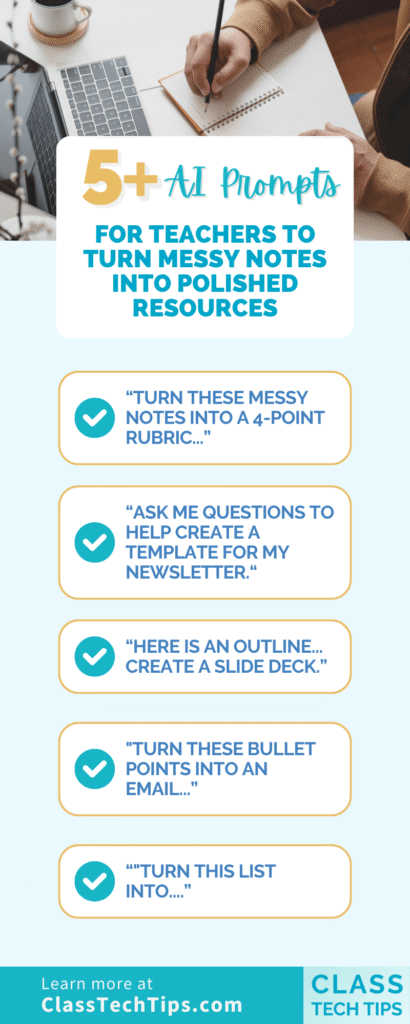
Turn these messy notes into a 4-point rubric for a 5th grade animal research project. Include columns for Exceeds, Meets, Approaching, and Below. Format it as a table. Make the language clear enough that a student could read it and understand what they need to do.
Then paste your notes right after the prompt. I usually put my notes in brackets to separate them from the instructions, but that’s just a personal preference. The key is that you’re giving the chatbot both the structure you want and the content to work with. You can also upload reference material, like a rubric you’ve used in the past. The chatbot can follow that same structure or style.
Creating a Rubric in Gemini
When I demonstrated this live in Gemini, it created a well-organized rubric table in under a minute. From there, I hit “Export to Sheets” and had it in my Google Drive ready to edit. The formatting was about 90% of the way there. I just needed to adjust some column widths and tweak a few word choices.
Here’s the important follow-up: don’t stop at the first output. I replied with “Add a row for citations and make the language more student-friendly. Change any words above a fourth-grade reading level.” That second prompt made a noticeable difference in quality. I often use the phrase “reply to refine” in my sessions to describe the back and forth needed to get what you need.
Draft a Newsletter with the “Ask Me Questions” Technique
Newsletter time can feel like a chore. This is especially true when you send one out monthly and the format needs to stay consistent. One of my favorite strategies for this is the “ask me questions” approach. Instead of writing a detailed prompt with every detail upfront, you let the chatbot interview you.
Here’s the prompt:
Every month I send out a newsletter to families that includes: things that we accomplished, what we’re working on, some recommendations, a seasonal piece of trivia. Ask me questions to help create a template for my newsletter.
Creating a Newsletter in ChatGPT
When I tried this in ChatGPT, it came back with a series of thoughtful questions: What grade do you teach? What tone do you prefer? How long should it be? Do you want the same sections each month? This is where the microphone button becomes your best friend. Instead of typing out every answer, I hit the dictation button. I talked through my responses in about 30 seconds.
The result was a newsletter template that was warm, casual, and perfectly structured for my needs. And because I used the “ask me questions” approach, the chatbot had enough context to nail the tone pretty quickly.
This technique works far beyond newsletters. Anytime you need help creating something, try adding “ask me questions to help” at the end. It turns a blank-page moment into a guided conversation. And it saves you from rewriting your prompt five times.
Turn an Outline into a Slide Deck
This one is a game-changer if you’re a Google user. It’s one of the most popular AI prompts for teachers I’ve shared in webinars and workshops. In Gemini, you can take a rough lesson outline and turn it into a slide deck. It exports directly to Google Slides.
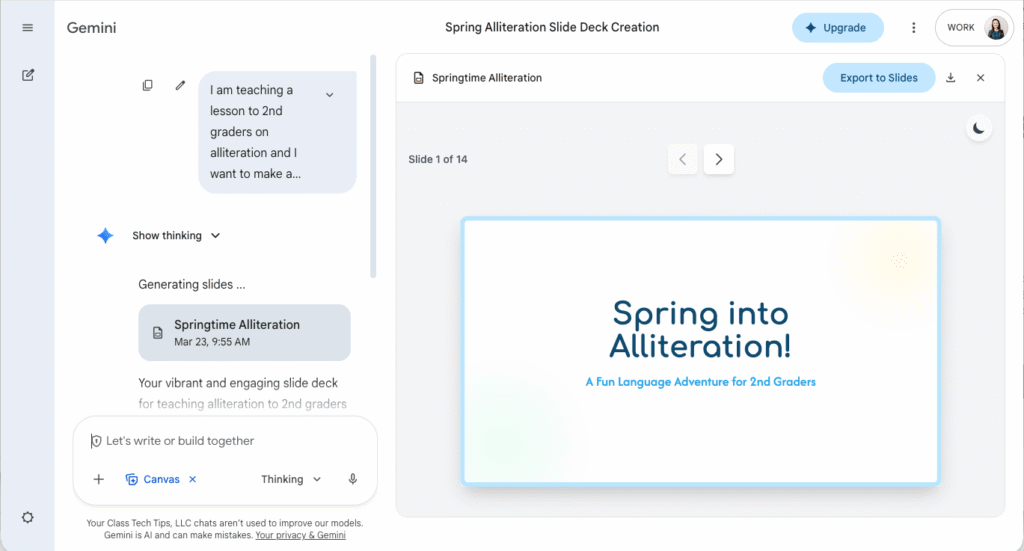
Here’s how I usually model it for teachers. I had a lesson outline for a sixth-grade biodiversity unit. It was just bullet points with topics I wanted to cover. This included a notice-and-wonder activity and connections to local ecosystems. I pasted the outline into Gemini with this prompt:
[Create a slide deck] Here is an outline of material I want to cover in an upcoming lesson for sixth-grade students. Create a slide deck that includes images, this information, and opportunities for students to turn and talk.
Creating a Slide Deck in Gemini
Two important tips: First, make sure you click the “Canvas” tool at the bottom of Gemini before submitting. This tells Gemini to create the slides in a visual panel rather than just listing them as text. Second, choose the “Thinking” model. Even though it might take a bit longer, the output is usually higher quality.
When Gemini finished, I had a multi-slide presentation with content organized by topic, some suggested images, and built-in discussion prompts. I hit “Export to Slides” and it opened right up in my Google Drive. It wasn’t perfect, but certainly a great start. I still needed to swap out a couple of images and adjust some slide titles. I also made sure the discussion prompts matched my teaching style. But it was a dramatically better starting point than a blank Google Slides file.
For more on using Gemini’s features, check out my post on 15 Teacher Tips to Use Gemini to Save Time and 9 AI Tools from Google Teachers Should Know About.
Quick Wins to Speed Things Up Even More
Beyond these three use cases, I want to share two tools that can supercharge your formatting workflow.
The first is Text Blaze. It’s a Chrome extension that lets you create keyboard shortcuts for text you type all the time. I use it probably a dozen times a day. For example, I have a shortcut where I type “/re” and it automatically fills in “Rewrite this so it’s friendly, clear, and professional.” If you have go-to prompts you use repeatedly when working with a chatbot, Text Blaze turns them into one-keystroke actions.
The second is Prompt URLs. This is a free tool that lets you create a pre-filled prompt as a shareable link. You write your prompt, mark the parts that should be customizable fill-in-the-blanks, and it generates a URL. When someone clicks the link, it opens their chatbot of choice with your prompt already loaded. This is fantastic for sharing prompt templates with your team or grade-level partners.
Putting these Ideas into Action
Here’s what I want you to take away from all of this: the expertise is always yours. AI isn’t creating the rubric criteria or deciding what goes in your newsletter. AI takes the formatting, structuring, and arranging off your plate. That frees up your energy for the decisions that require your professional judgment.
I often think about the 70-80% rule. AI gets you most of the way there. Your expertise shines in the final polish. Document formatting is where that rule is most true. The gap between a chatbot’s first draft and your final version is usually just a few small tweaks.
Formatting Help: AI Prompts for Teachers
I’ve already shared a few favorite prompts above, but let’s keep the list growing with a handful more:
“Turn these bullet points into an email announcing our upcoming field trip. Keep the tone warm and include a permission slip reminder.”
“I have notes from a team meeting. Reformat them into a one-page summary with action items, responsible parties, and deadlines in a table.”
“Create a one-page classroom newsletter template I can reuse each week. Include sections for announcements, upcoming dates, what we’re learning, and a student spotlight.”
“Turn this paragraph-style lesson description into a substitute teacher plan with numbered steps, time estimates, and a list of materials needed.”
“I have a list of 20 spelling words. Create a formatted word search, a fill-in-the-blank activity, and a matching activity using these words.”
“Take this grading criteria I wrote in paragraph form and turn it into a single-point rubric with columns for areas of strength, criteria, and areas for growth.”
“Reformat this report card comment so it leads with a strength, addresses an area for growth, and ends with an encouraging next step. Keep it under 100 words.”
“Turn this list of classroom rules into a visually friendly poster layout with short descriptions and a positive tone suitable for 2nd graders.” (Explore this blog post on infographics for more image ideas)
“I have an existing worksheet in paragraph form. Reformat it so the directions are numbered, bold the key vocabulary words, and add a word bank at the top.”
Do you have a favorite? Reply to my weekly newsletter (sign up below) and let me know what is working best for you!