My workshops, webinars, and conference sessions with educators often bring up the same challenge. Feedback routines matter, but they take a lot of time. AI tools for teacher feedback can help you draft comments faster and plan next steps, while keeping you in the driver’s seat.
This fall, I hosted a workshop for a group of teachers focused on using AI chatbots to support feedback routines and formative assessment. We talked about what makes feedback effective, what teachers can realistically do during a busy week, and how AI tools can help us move faster without losing the professional judgment that makes feedback so meaningful.
If you want to learn more about this work, including upcoming sessions and resources check out this page.
Today on the blog I have a dozen prompts to share with you and a few favorite AI tools for teacher feedback.
Why does timely feedback matter?
When feedback is timely, students can use it while the learning is still in progress. They can revise a paragraph, rethink a math strategy, or reread a section of a text with a clearer goal in mind. As a classroom teacher it was a challenge to give feedback to every student with a quick turnaround.
When feedback shows up after too much time has passed, it doesn’t have the same impact as it would have when the work is fresh for students. You also miss the chance to adjust instruction based on your observations of student work.
I have shared lots of ideas connected to formative assessment and feedback routines over the years. If you have explored my posts on exit tickets, rubrics, and quick checks for understanding, you have seen the same takeaway. AI chatbots can support your feedback routines by helping you draft responses to students, so you can respond in a more timely manner.
Using Chatbots with Feedback Routines
Over the past few years, I’ve shared plenty of prompt examples you can use to gather lesson ideas, customize activities, and more. You might remember my posts for social studies educators and school leaders, or even my popular prompt download (it’s been downloaded thousands of times) and includes a mix of prompts to try: 60+ Must-Try ChatGPT Prompts for Teachers.
Before getting into prompt examples, I want to give a quick note on responsible use related specifically to teacher feedback.
In my sessions, I recommend that educators avoid uploading student work into a general purpose chatbot. I also recommend avoiding copying and pasting chatbot output directly into student comments.
Instead, describe the assignment, the grade level, and the specific skill you are targeting. Use the chatbot to generate draft language. Then review and revise with your own expertise and your knowledge of the student.
Think of the chatbot as a draft partner. You are still the content expert. New to chatbots? Check out this list of “8 AI Chatbots for Teachers.”
How to Use AI Chatbots to Draft Feedback Comments
One way to use a chatbot is to generate a set of feedback comments you can pull from during grading. This works well when you want to give feedback that is consistent, and aligned to specific skills.
Here are prompt starters you can copy, paste, and customize:
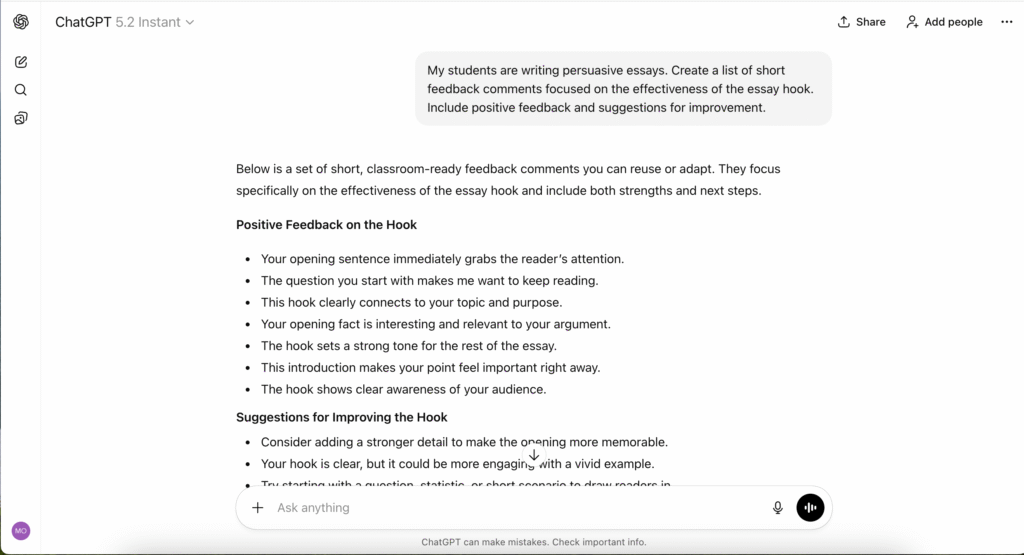
My students are writing persuasive essays. Create a list of short feedback comments focused on the effectiveness of the essay hook. Include positive feedback and suggestions for improvement.
My students are in 5th grade and are writing persuasive essays. Generate a list of potential comments I can leave on their work about the opening hook.
My students are writing persuasive essays. Draft feedback comments about the hook that align to this rubric criterion: The introduction engages the reader and clearly presents the topic.
My students are writing persuasive essays. Create feedback comments about the hook that include one clear next step the student could take to revise their opening.
My students are writing persuasive essays. Create three sets of feedback comments about the hook: one for strong openings, one for developing openings, and one for openings that need significant revision.
Going Beyond the Prompt
After the chatbot generates ideas, you can do a quick quality check. You might ask yourself questions like:
- Do they match the language you use with students?
- Do they connect to the learning goal?
A small move that can make a big difference is asking the chatbot to “write the comments in student-friendly language.” Another is asking it to “include a next step that starts with a verb, like add, revise, explain, or highlight.”
How to Use Chatbots to Generate Formative Assessments
Chatbots can also help you draft quick assessments that match your objective. This is useful when you want a short check for understanding and want help creating questions.
Here are a few examples with an Earth Science connection:
I teach middle school Earth Science. Create an exit ticket to check student understanding of the rock cycle. Include one multiple choice question, one short answer, and one reflection question.
Create a short exit ticket for an Earth Science lesson on weather fronts that can be completed in under five minutes.
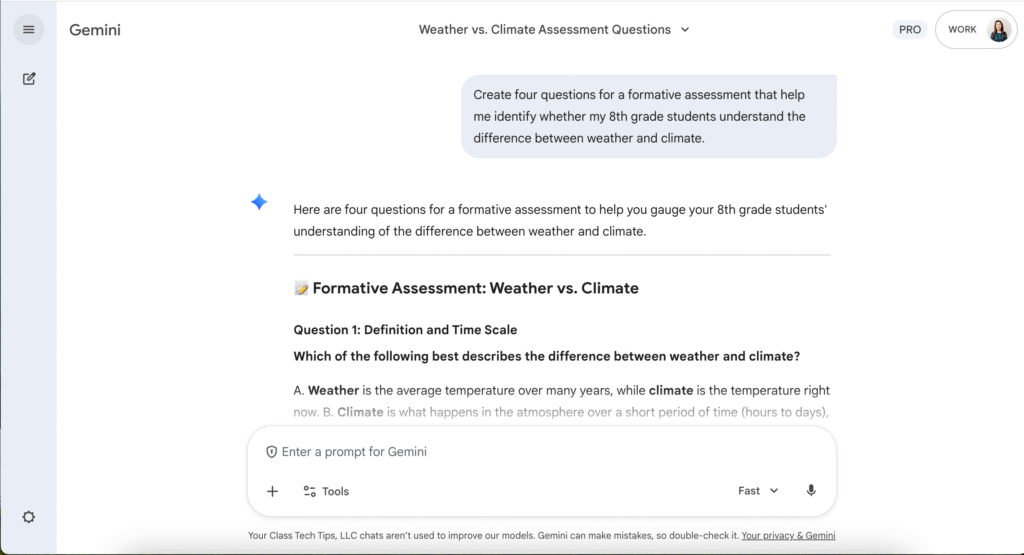
Create four questions for a formative assessment that help me identify whether my 8th grade students understand the difference between weather and climate.
I teach 8th grade Earth Science. Create three levels of formative assessment questions on the water cycle: basic recall, explaining processes, and applying understanding to a real world example.
These examples are pretty general and you can make your requests (prompts) as specific as you like. You might provide more context on a lesson and expectations for students.
AI Tools for Teacher Feedback
Along with using prompts in a chatbot, you might choose an AI-powered educational tool that can add feedback directly to student work. As I mentioned earlier, you would not want to upload student work into a chatbot. But if you are using a school- or district-approved tool that students can sign in to and use to submit their work, you can take advantage of its feedback suggestions as a starting point for what you write.
Here are a few examples:
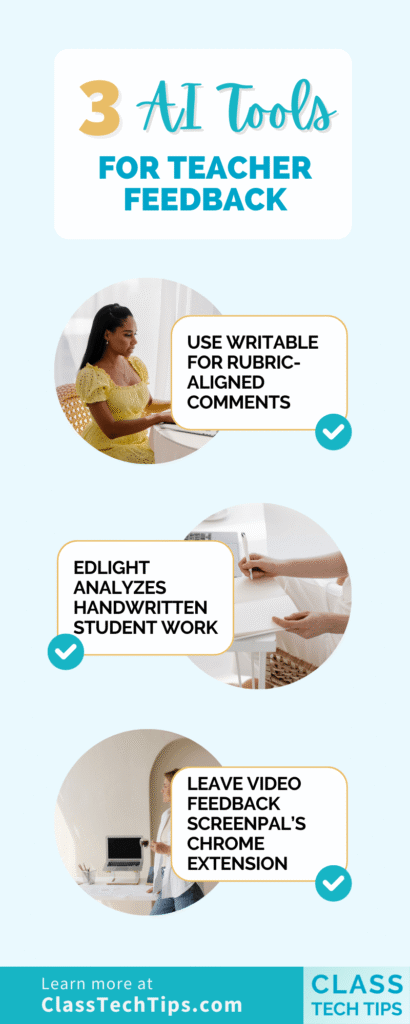
Writable includes AI feedback designed to help teachers create more actionable, rubric-aligned comments and draft scores.
EdLight is designed to analyze handwritten student work, highlight gaps, and suggest next steps. It is often positioned as a math support tool. This is especially when teachers are working with paper based assignments or whiteboard work.
ScreenPal lets you give feedback to students with video twist. With ScreenPal’s Chrome extension, you can quickly leave video feedback without having to write out long responses or jump between tabs.
AI chatbots and formative assessment tools can help you keep feedback focused on the learning goal while providing feedback in a timely manner.
If you want to learn more about my workshops and resources on this topic, visit this page to learn more.