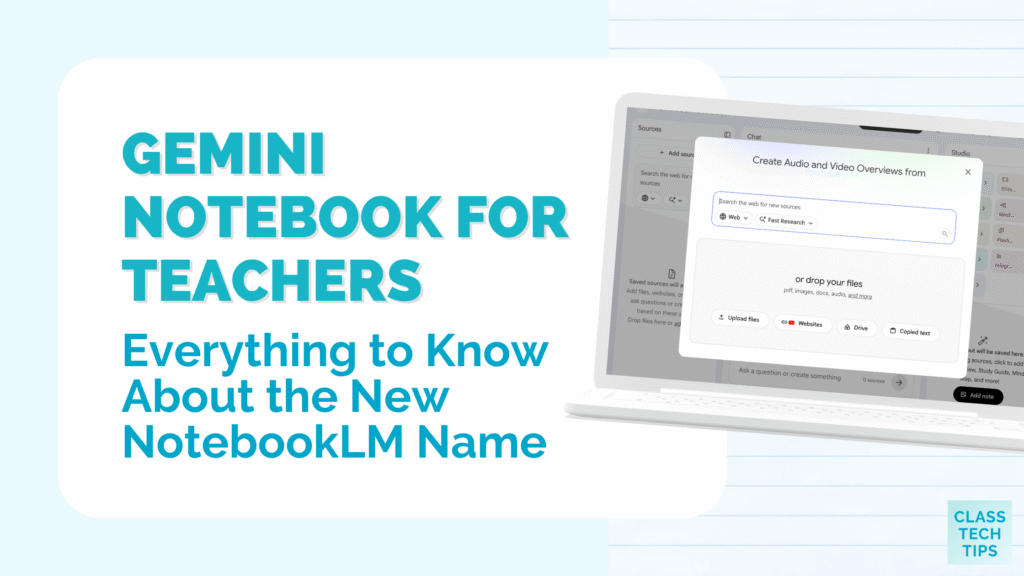
Have you heard that NotebookLM has a new name? If you opened the tool this summer you might have noticed it now says Gemini Notebook. Although it has a new name, everything you’ve loved about NotebookLM in the past is still available. Today on the blog, we’ll take a look at Gemini Notebook for teachers and some of my favorite features!
Gemini Notebook is the same tool you may already know as NotebookLM. The name is new, but the notebooks you built are still there. If you’ve joined me for a webinar or workshop this year, all of the features I love to share with teachers are still there. This includes audio overviews, video overviews, infographics, and so much more.
Let’s take a look at what Google announced, what it means for Gemini Notebook for teachers, and a roundup of the posts I’ve written about this tool over the past couple of years. The name change didn’t come with a big feature overhaul. So, every one of these posts is still full of strategies to explore this school year. You’ll find a quick summary of each one so you can jump to the ideas that fit your classroom.
What Changed When NotebookLM Became Gemini Notebook
In July, Google shared the news of the name change in a post titled NotebookLM is now Gemini Notebook. The announcement explains that the new name reflects how closely the tool now connects to the rest of Google’s Gemini ecosystem. It’s not a wild move. However, it’s worth knowing about if you are sharing this resource with your colleagues or searching for ideas on how to use some of the newest features.
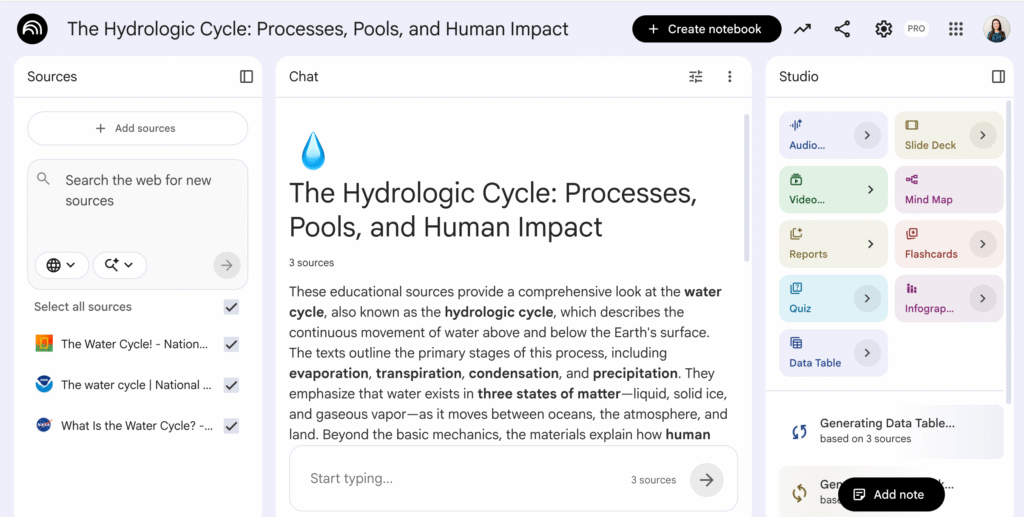
Gemini Notebook is still a standalone tool. It lets you upload your sources (PDFs, Google Docs, websites, YouTube videos, and more) as reference material. You can use the chat feature to interact with your sources, and you can head to the Studio panel to generate audio, video, slides, infographics, and other resources.
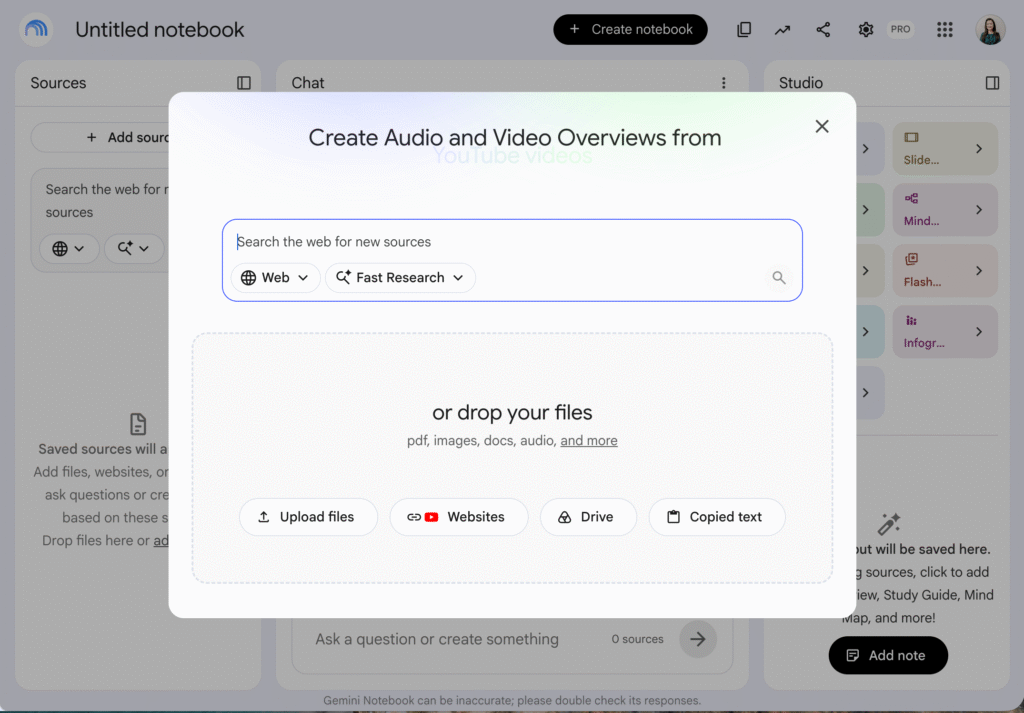
The announcement also mentioned a few other updates that might be useful to know about. Notebooks now sync between the Gemini app and the standalone Gemini Notebook experience. And there is a new option for running code inside a notebook for data analysis. Just like lots of AI tools, these updates are rolling out to different account types at different times, so if you don’t see one yet, check back in a few weeks.
If you’re a teacher who already has a favorite way to use this tool, not a lot has changed. If you’re brand new, the posts below will help you get started with Gemini Notebook for teachers, even though most of them use the old name.
Getting Started with Gemini Notebook for Teachers
Getting started with Gemini Notebook for the first time? These two posts introduce the tool and place it alongside the other AI tools from Google.
5 Ways Teachers Can Use NotebookLM Today was my first post about this tool. It covers what a notebook is, how to upload sources, and five practical ways to use it. This includes turning conference notes into a podcast-style recap, listening to an article while you’re on the move, and creating an audio study guide at the end of a unit. This post highlights ways to use Gemini Notebook behind the scenes for instructional planning.
9 AI Tools from Google Teachers Should Know About rounds up a handful of Google’s AI tools for educators. NotebookLM (now Gemini Notebook) is featured as the tool for interacting with your own stuff. This could include research papers, notes from a conference, or a set of readings for a unit. It’s a helpful read if you want to check out a few different AI-powered options from Google.
If you’d rather listen than read, my Quick Overview of NotebookLM with Teacher Tips episode of the Easy EdTech Podcast walks through the basics, too.
Gemini Notebook Features Teachers Will Want to Try
Once you’re comfortable uploading sources and asking questions, the Studio panel is where things get exciting. This is the part of Gemini Notebook I demonstrate most often in workshops and webinars.
5 Wild NotebookLM Features for Teachers You Need to Try is the most detailed post I’ve written about the tool. It walks through five favorite Studio features:
- audio overviews in a debate format that model what a strong argument sounds like from both sides
- customized slide decks you can steer toward a specific focus like vocabulary review
- infographics with new style options
- data tables that pull from all of your sources
- video overviews with a cinematic option.
You’ll also find my tip for hovering over each Studio tool to find the small arrow that opens up the customization options. That step makes a big difference in the quality of what you create and is easy to miss if you’re excited to dive right in.
How to Make Classroom Infographics with AI compares a few tools for building infographics, and I suggest starting with Gemini Notebook if you already use it. Because the infographic is generated from your uploaded sources, you can take a long PDF or a set of research notes and turn it into a visual summary. The post covers the options for choosing the level of detail, the shape of the infographic, and adding extra notes to guide the design.
Lesson Ideas Using Gemini Notebook Across the Content Areas
These posts aren’t only about Gemini Notebook, but each one includes a specific way to use the tool across different subject areas.
10 Ways to Use AI for Book Studies in Your Classroom includes an idea for creating an author snapshot. You can upload a handful of resources about an author’s life into a notebook, then use the Studio panel to create an infographic, a short explainer video, or another resource to introduce the author to students before they begin reading.
AI Virtual Field Trips: 10 Ways to Take Students Around the World shares how to make an explainer video about a place you’re studying. Upload your materials into Gemini Notebook, generate summaries, a study guide, and an audio or video overview. You can also use the arrow next to the Video option to customize the result for your students.
10 Spring School Decorations You Can Make with AI includes a data-driven decor idea for making a math or science connection. You can feed the tool information like local rainfall or the timing of blooming flowers and generate an infographic to display in your classroom.
Making the Most of Gemini Notebook for Teachers
A name change can feel like a big deal, especially when a tool has become part of your planning routine. When I’m leading a workshop or webinar, I sometimes slip up when a tool name has changed (think Adobe Spark becoming Adobe Express, or Flipgrid becoming Flip).
If you’re new to Gemini Notebook, start small. Pick one post from the list above, upload just a few sources, and try one Studio feature.
Do you have a favorite way to use Gemini Notebook? Reply to my weekly newsletter (sign up below) and let me know what is working best for you. And if you’d like a deeper dive on AI tools for your school or district, take a look at my events and workshops page to learn more about bringing a session to your team.