Have you tried literature circles with your students? Small groups, a shared book, and a set of roles that give every reader a job to do are all part of traditional literature circles. It is one of those routines that has been around for decades, and there are plenty of ways to use EdTech to support the process.
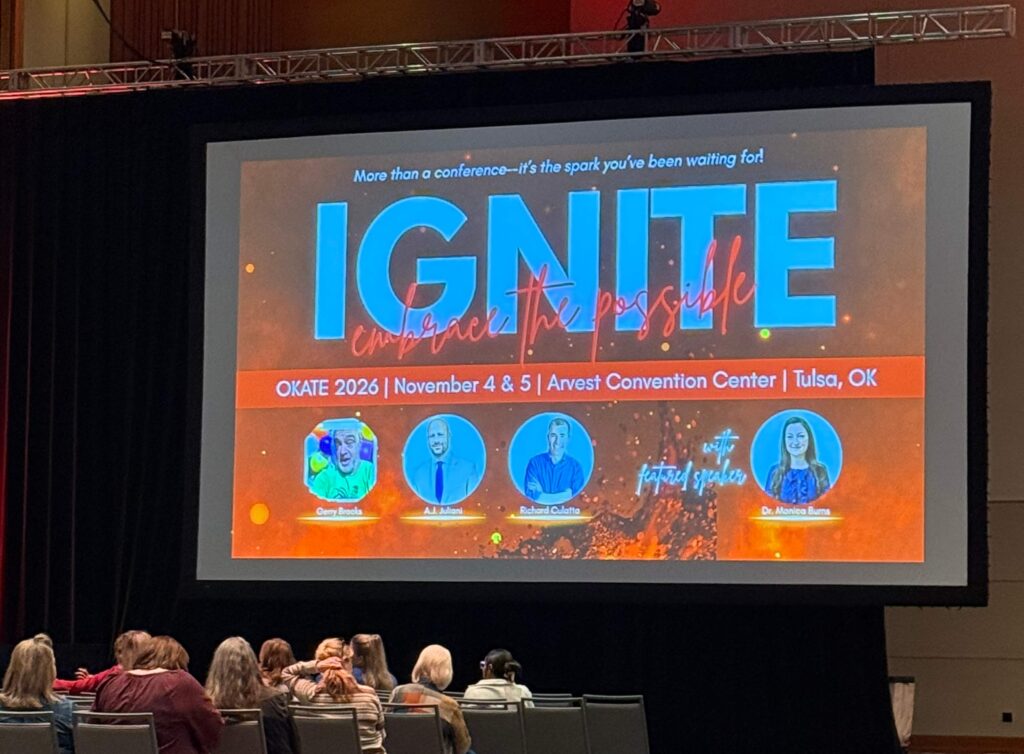
Last week, I had the chance to work with educators in Tulsa, Oklahoma. I was there for the OKATE conference, where I was a featured speaker and led a half dozen sessions. Two of them were literacy sessions: “10 Reading Response Activities for Elementary and Middle School Classrooms” and “10 AI-Powered Tips for Dynamic Book Studies.”
Literature circles, book studies, and small group and whole group instruction were all topics I covered during these sessions. Today on the blog, I’m sharing a few highlights from my sessions at the event. We’ll take a look at common literature circles roles and a few EdTech connections that make each role more visible and more collaborative. I’ve also included some AI tips to use behind the scenes in your instructional planning, like gathering ideas and customizing your next lesson.
What Are Literature Circles Roles?
Literature circles are a bit different from book clubs, which often feel less formal and less structured. Education World describes this model from Harvey Daniels as “small, temporary discussion groups.” Every member takes on a specific responsibility, and the roles rotate from one meeting to the next.
The names vary from classroom to classroom, but the jobs stay pretty consistent. When I was a fifth grade teacher, we usually had groups of four with four roles. But you can certainly decide what works best for your group.
Here are some popular roles and a few links so you can dive deeper:
- Discussion Director: This student writes the questions and runs the conversation. TeacherVision sums up the job as “keeping the discussion moving along, productive and focused.”
- Literary Luminary (or Passage Picker): This reader chooses a few sections worth reading aloud. In this role, students are finding the parts of the text the group would want to hear again.
- Connector: This student links the reading to their own life, to other books, or to the world outside the classroom.
- Summarizer: This reader gives a quick recap of the assigned pages so the group starts on the same page, literally.
- Vocabulary Enricher (or Word Wizard): According to this ReadWriteThink role sheet (you’ll find it in the printouts section), this student “clarifies word meanings and pronunciations” for the group.
- Illustrator: This reader responds to the text with a sketch, a diagram, or another visual that sparks conversation.
These roles help students learn how to talk about a book, and you might phase them out once a group can hold a rich conversation on its own.
EdTech Connections for Literature Circles Roles
When I was in the classroom, literature circle roles lived mostly on paper before we went one-to-one. Digital tools can give you a window into student thinking before the group even meets.
Collaborative Google Slides Decks
Set up one Google Slides deck for each literature circle group. Give every role its own slide for each meeting, and label the slides clearly so students know exactly where to add their thinking. The Literary Luminary can paste a passage and add a comment explaining why they chose it. The Illustrator can use the drawing tools or insert a photo of what they drew on paper. The Summarizer can add a few bullet points or record a short audio file to attach to their slide.
Because everyone works in the same deck, group members can preview each other’s contributions ahead of time, and you can skim all of your groups in a few minutes. If you want more ideas for setting up shared decks, I have a full post on 18 reasons I love Google Slides for teachers.
Padlet Columns for Roles and Tasks
Padlet is a go-to for organizing ideas, and it’s great for literature circle updates. Create a board for each group and use the columns format to give each role its own column. Students post their ideas in the right spot, so the Discussion Director’s questions sit in one column and the Connector’s text-to-world ideas sit in another. Group members can reply to a post with a comment, a short video, or an audio recording. This is perfect for students who prefer to talk through their thinking.
You can also set up a Padlet board as a task tracker. Add columns for “To Do,” “In Progress,” and “Done,” and have each group move their role assignments across the board as they prepare for a meeting. If it has been a while since you logged in, check out 5 things you might not know about Padlet for the newest features, including video responses and AI support for building boards.
More Tools to Try
A few other connections I shared with educators at OKATE:
- The Illustrator can build a page in Book Creator that the group adds to over the course of the book.
- The Vocabulary Enricher can create a quick set of word cards in Canva to share with the group.
- A simple Google Form at the end of each meeting gives every student a chance to reflect on how the discussion went.
Reading Strategies and the Assess Essential
Literature circles are a reading routine first and a technology routine second. If you want a bigger picture of how digital tools can support readers, Pam Allyn and I co-wrote a quick reference guide for ASCD called Engaging Students in Reading All Types of Text. It is packed with strategies for helping students read closely across print and digital texts. You can also hear Pam share her thinking on this episode of the Easy EdTech Podcast.
There is also a strong link between literature circles and the Assess essential in my book EdTech Essentials. That chapter is all about checking for understanding and pivoting instruction. When students post their role work in a shared slide deck or a Padlet column, you have formative assessment data in front of you before the group meets. You can see which students are summarizing accurately, who is asking surface-level questions, and where a mini-lesson might help. The tool captures the thinking, and you decide what to do with it.
AI Tips for Literature Circles Roles
In my “10 AI-Powered Tips for Dynamic Book Studies” session, we talked about how AI can help with the planning side of literacy instruction. Here are a few ways to get started.
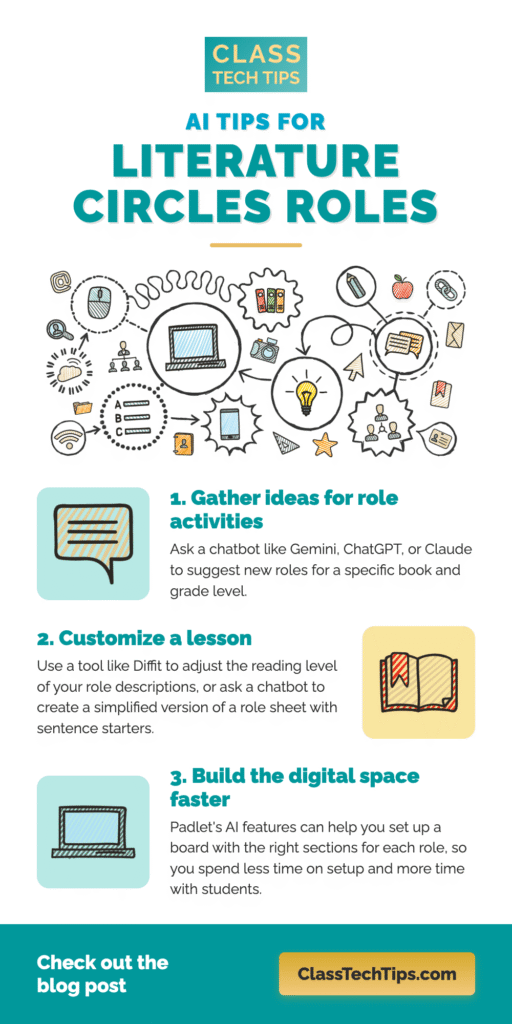
Gather ideas for role activities. Ask a chatbot like Gemini, ChatGPT, or Claude to suggest new roles for a specific book and grade level. For example, you might ask for three alternative roles for a fifth grade group reading a graphic novel, or a set of question stems the Discussion Director can use with a nonfiction text. You will not use every suggestion, but it is a quick way to refresh a routine that has started to feel stale.
Customize a lesson. If you have a group of multilingual learners or students reading below grade level, use a tool like Diffit to adjust the reading level of your role descriptions, or ask a chatbot to create a simplified version of a role sheet with sentence starters. You can also ask for leveled paired passages and graphic organizers that bring informational text into the group’s discussion.
Build the digital space faster. Padlet’s AI features can help you set up a board with the right sections for each role, so you spend less time on setup and more time with students. Students can even create AI-generated images as part of their post (it’s an option in Padlet).
As always, review anything an AI tool generates before it reaches your students. For more ideas along these lines, check out my post on 10 ways to use AI for book studies in your classroom.
Getting Started with Literature Circles Roles
You do not have to redesign your whole reading block to try this. Pick one group, one tool, and one role to move into a digital space. A single Padlet board or a short Google Slides deck could be the perfect way to get started.
If you are heading into a book study this winter, I hope these literature circles roles and EdTech connections get your wheels spinning. And if you would like a few more ideas delivered to your inbox each week, sign up for my Monday newsletter. Reply to my email with your thoughts, ideas, and questions!
And of course, if you’d like to set up a workshop or webinar on this topic for your colleagues, explore my workshop and webinar options.