When was the last time you went looking for a resource you saved and couldn’t find it? Maybe it was a great activity from two years ago. Or a reading passage you used last fall. Or something a colleague shared that you know you saved somewhere. We’ve all been there, and I know I certainly could do a better job keeping my files and folders organized.
Organizing digital resources is one of those tasks that every teacher knows is important but rarely has the time to tackle.
I hosted a webinar earlier this school year where we looked at ways to streamline workflows with AI. It’s a big topic and in today’s post, I want to narrow down the focus a bit. I’ll share some tips on how to organize teaching resources with a little help from AI-powered tools.
With the quick tips I share in today’s blog post, you won’t need a fancy AI tool or a paid subscription to get started. A free chatbot like ChatGPT, Gemini, Copilot, or Claude can help you organize teaching resources in minutes.
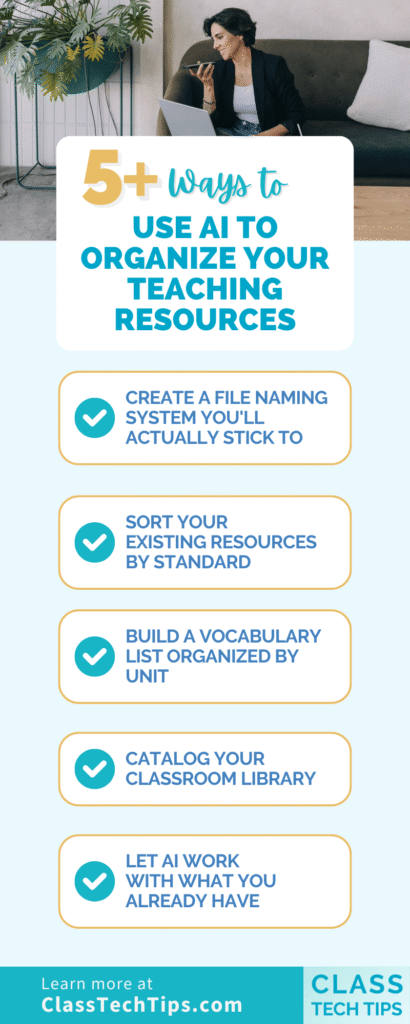
Create a File Naming System You’ll Actually Stick To
One of the biggest reasons our digital files become a mess is that we don’t have a consistent naming convention. We save things in the moment and three months later we have no idea what’s what.
A chatbot can help you create a practical file naming system tailored to your specific subjects and grade level.
Here’s a prompt you can try:
“I teach 8th grade ELA and science. Create a file naming convention I can use for all my digital resources. Include the subject, unit number, resource type, and date. Give me 10 examples using real topics from a typical 8th grade curriculum.”
What you’ll get back is a clean, consistent naming pattern along with concrete examples that make it easy to start implementing right away. Something like “ELA_U3_Worksheet_PersuasiveEssay_2026-03” gives you a file name that’s immediately scannable and sortable.
Sorting and Naming Files
There are AI tools that can go into your folders and update file names. But I’m not recommending you start there. There are privacy and security issues to consider when giving AI tools that much access. However, setting up a naming convention you can build a habit around is a perfect way to start.
This is especially powerful at two moments in the school year. The end of the year when you’re reviewing what to keep, and the start of the year when you want to begin fresh. You could even set a recurring calendar reminder. For example, every Thursday morning, spend 15 minutes renaming files using your new system. Over time, that small habit adds up.
Sort Your Existing Resources by Standard
If you’ve been teaching for a while, you probably have folders full of activities and worksheets you’ve collected. The problem isn’t a lack of materials. It’s that you can’t quickly find what aligns with what you’re teaching this week.
This is where AI can do some of the heavy lifting for you.
Here’s a prompt:
“Here is a list of 15 activity titles from my 3rd grade reading folder. Match each one to the most likely ELA standard. Organize them into a table with columns for activity title, standard code, standard description, and suggested unit placement.”
Then paste in the list of activity titles. You could type them out, use voice-to-text to rattle them off quickly, or even take a screenshot of your folder and upload it to the chatbot for reference (so it can read the file names).
A couple of important notes here. The chatbot is making its best guess based on the activity titles. It’s not reading the full content of each resource. So you’ll want to review the output with your expert eye. Think of this as a head start, not a finished product.
You could also extend this with follow-up questions. Try: “Which standards are missing from this list? Suggest two activity ideas for each gap.” Now you’ve gone from organizing to identifying gaps. That’s the kind of workflow that turns a time-consuming task into a useful planning session.
Build a Vocabulary List Organized by Unit
Vocabulary is another area where organization might feel like a challenge. You know the words you need to teach, but pulling them together into a structured, unit-by-unit format takes time. This is especially true if you teach multiple subjects or grade levels.
Here’s a prompt that can help:
“I teach 8th grade US History. Generate a vocabulary list for each of the following units: [list your units]. Include 8-10 words per unit. Organize them in a table with columns for unit, term, and a short student-friendly definition.”
What you’ll get is a structured table you can drop into a Google Sheet or study guide. Will every word be exactly what you’d choose? Probably not. But the structure is there. Swapping out a few terms is much faster than building the whole thing from scratch.
Want to take this further? Reply with: “Add a column for a related image description I could use as a visual cue.” Or: “Highlight any words that are also relevant to our ELA curriculum.” These follow-up prompts transform a basic vocabulary list into a genuinely useful teaching tool.
For more ideas on using AI with vocabulary instruction, check out my post on “7 Ways to Use AI to Teach Vocabulary.”
Catalog Your Classroom Library
Another way to use AI to help you stay organized is to ask for help with your classroom library. I can only imagine what I would have been able to do in my fifth grade classroom with all of the books around my room.
If you have a classroom library, or even a shared book collection, you know the challenge. Keeping track of what you have, what reading level it’s at, and which unit it connects to can be a project in itself.
Here’s a prompt you can try:
“Here are 20 titles from my classroom library. Create a catalog table with columns for title, author, genre, approximate reading level, and which ELA unit or theme it could support.”
You can type out the titles, or try this shortcut. Stack the books on a desk, snap a photo, and upload it to a chatbot like ChatGPT or Gemini. Many chatbots can read book spines from a photo. It’s not always perfect, but it’s a surprisingly effective way to get started.
Once you have your catalog, you can sort it by reading level, by unit, or by genre. This makes it much easier to recommend books to students or to pull together a text set for an upcoming lesson.
The Upload Trick: Let AI Work with What You Already Have
One theme runs through all of these strategies: you don’t have to start from scratch. Many chatbots let you upload files like PDFs, images, and spreadsheets. Then you ask the AI to do something with them. Of course, only upload files you have permission to share. Make sure there is no private, personal, or sensitive data included.
For organizing purposes, this opens up all kinds of possibilities. Upload a list of student interests and ask for grouping ideas. Upload a rubric and ask for more student-friendly language. In Gemini, you can even add files directly from Google Drive. That makes it even faster if your resources are already saved there.
The big shift here is moving from “I need to create this from scratch” to “I already have something, so how can AI help me reorganize, reformat, or repurpose it?” That shift alone can save you significant time.
For more on how to use file uploads effectively with chatbots, check out my guide to 8 AI Chatbots for Teachers which covers which tools support uploads and how to get the best results.
Making It a Habit
The real value of these organizational strategies isn’t in doing them once. It’s in building habits around them. Here are a few ways to make this stick:
- Set a “file cleanup” reminder for the same time each week. Even 10-15 minutes of consistent organizing adds up fast.
- At the end of each unit, spend five minutes asking a chatbot to help you tag and sort the resources you used. Future-you will be grateful.
- Share your file naming system with your grade-level team. When everyone uses the same convention, shared folders become dramatically easier to navigate.
- Start small. You don’t have to organize your entire Google Drive in one sitting. Pick one folder, one subject, or one type of resource and start there.
- Set time aside in a team, department or grade level meeting to come up with common file naming conventions, or set aside time for folder cleanups as a team.
Do you have a favorite? Reply to my weekly newsletter (sign up below) and let me know what is working best for you!