How do you share resources with your students? If you find yourself sending links to a YouTube video or posting links to an article in a few different places, it’s hard for students to stay organized. When you have helpful resources to share, you want to make sure students can find them easily.
That is where interactive learning pages can help. Instead of sending students in ten different directions, you can bring everything together in one place. Then you can add simple interactive elements, like games and quick quizzes, so students can check their understanding as they go.
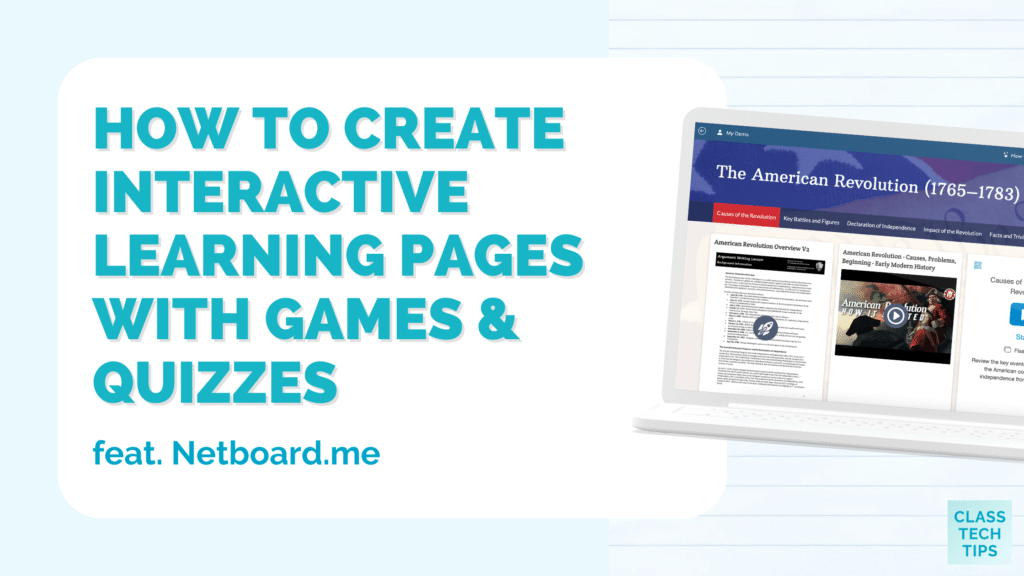
In today’s post, we’ll look at how to create your own interactive learning pages using Netboard.me. Unlike tools that only collect links or only create activities, Netboard.me lets you bring content, quizzes, games, and AI support together in one structured space. You can quickly organize lesson materials with tabs and sections, add learning games, and place quizzes right next to the content students need.
What are Interactive Learning Pages?
Interactive learning pages are digital pages that combine content and activities. It’s a customizable space for all of the materials you want to share with students for a lesson, a unit, or a project. From video clips to resources created with other EdTech tools, you have lots of ways to make this online space “just right” for your group of students.
Instead of a single list of resources, you can organize materials into clear sections. You might place the directions at the top, the reading in the middle, and a quick quiz at the end. You can also use tabs, sections, and folders so students know what to do first and what to do next.
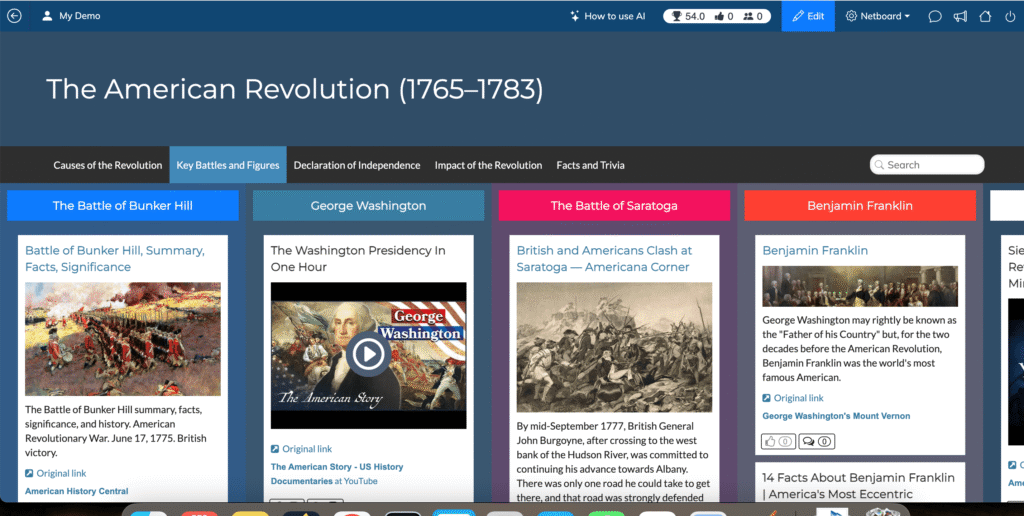
As you can see in the image above, you might have a page on the American Revolution with tabs at the top that organize your materials into subtopics. You might even create color-coded columns to organize content into sections. In this example, there are columns under the section “Key Battles and Figures” to make sure it’s easy to find the resources related to The Battle of Bunker Hill, George Washington, and more.
With Netboard.me you can create a page and add your own materials. This might include links, documents, images, text, audio, video, games, and quizzes all in the same space.
Organizing Resources with a Structure
When students open a learning space, they can be overwhelmed with content that lacks a clear organizational structure. They might look for a starting point, scan for directions, and then try to figure out what is required.
A structured interactive learning page can give students access to organized resources and activities. You can even place multiple types of content side-by-side so students can choose from a video, article or podcast episode on all the same topic. For example, you might include a short video from YouTube, a reading passage from a current event article, and a vocabulary support section on the same page.
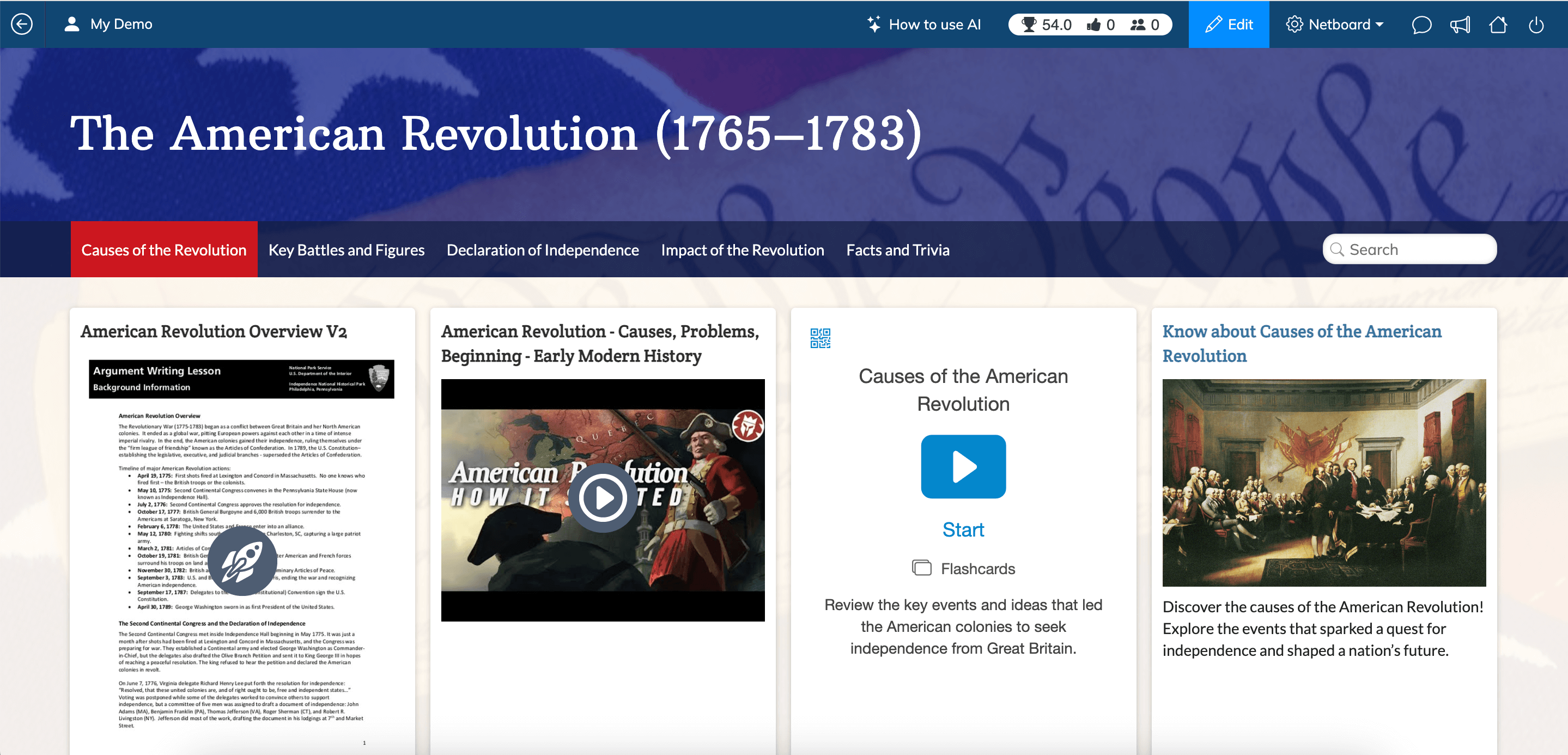
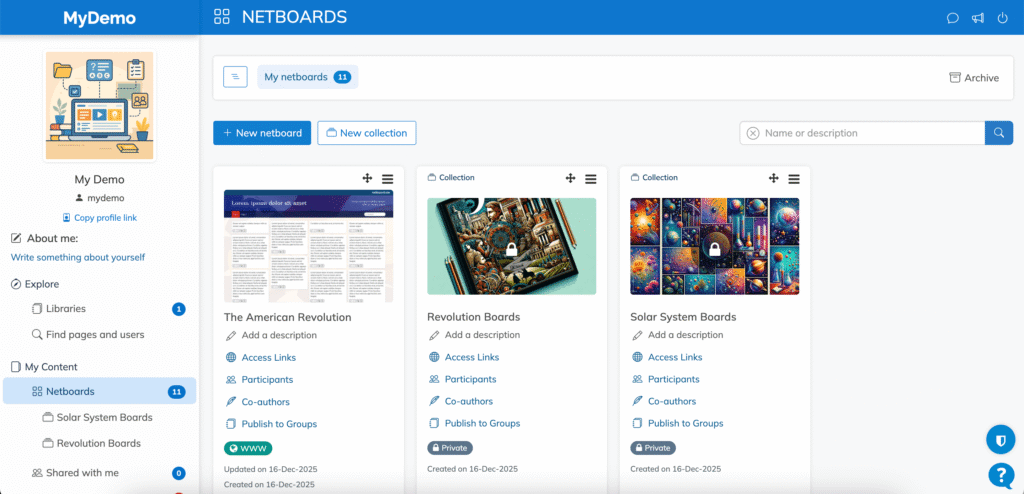
Netboard.me puts you in the driver’s seat and lets you decide what resources go where and how to share your page with students. You can keep pages private, share access with selected users, or make them public. You can share a page as a link or QR code, and you can also embed pages into a site or blog if you want families to view resources in one place.
Adding to an Interactive Learning Page
You can create an interactive learning page with a variety of resources and even pull in the tools you already use. Netboard.me can integrate content from popular platforms educators already know, including tools for video, quizzes, study supports, and creation. There is also the option to embed web content and organize it alongside your own materials.
With Netboard.me you can create a single workflow for students instead of multiple logins and multiple tabs. For example, you can add a PDF you created with vocabulary for a unit alongside links to engaging explainer videos from a resource like TED-Ed. It’s an opportunity to combine your teacher-created materials with content you’ve curated from other online sources.
Get started with Netboard.me today >>
Using Games and Quizzes with Students
If you’ve explored my book EdTech Essentials, you know that one of the chapters features the essential “curate.” When you curate resources you handpick the very best items to share with students to help them. Curation is just a piece of the puzzle when it comes to creating an interactive learning page with Netboard.me.
Interactive learning pages are not only about collecting resources. They are also about what students do with those resources. Netboard.me includes built-in learning games you can add to a page, like flashcards, matching, true/false, memory, categories, and find the spot. These options work well for retrieval practice and review, especially when students need repeated exposure to key terms and ideas.
You can also add quizzes directly alongside content to check understanding. When the quiz lives on the same page as the reading or video, students can move from engaging with a resource to practicing what they’ve learned all in the same space.
Get started with Netboard.me today >>
Using AI to Create and Share Resources
When I work with teachers and schools, one of the most popular topics this school year is about how to make the most of AI as an instructional tool. Many educators are looking for tools that save time on the repetitive parts of lesson preparation and Netboard.me includes AI-powered options that can support that goal.
For example, you can generate quizzes automatically from the materials you add. Netboard.me reviews the student responses, so there is no additional grading required for those quick checks for understanding. You can also enable a teacher’s assistant that answers students’ questions based on the content you have placed on the page.
Ways to Use Interactive Learning Pages this Year
Interested in using interactive learning pages this year? Here are a few ways to use ideas you can tailor to your own group of students.
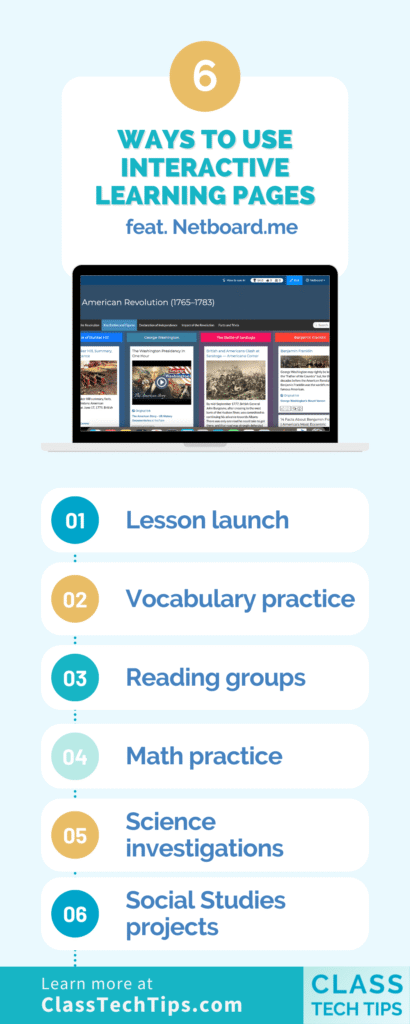
Lesson launch: place the learning target, a short warm-up prompt, and two resources students will use that day. Then add a quick quiz with two to four questions so you can spot confusion early.
Vocabulary practice: add key terms with images, then include a flashcard game or matching activity. Next, add a short quiz so students can check progress before moving on.
Reading groups: create one page per text and include an audio option, a discussion prompt, and a response space. Then add a quiz focused on the main idea, details, or key vocabulary.
Math practice: organize the page into three sections. First, include a mini lesson video. Next, add practice problems in a document or image format. Finally, add a short quiz as an exit ticket style check.
Science investigations: place the lab directions at the top, then add short background content in the middle. If students need to review terms before the lab, include a quick game. When the investigation ends, add a quiz to capture observations and claims.
Social studies projects: add a set of sources, like images and short videos, and organize them by question. Then add a quiz that checks understanding of key terms, timelines, or cause and effect relationships.
Bonus: Students can build their own boards on their own or with a small group to gather and organize content together. As they work, they collect resources on a specific topic, decide which ones are worth sharing, add notes or annotations, and describe why each resource belongs in the collection.
Getting started with Netboard.me
Ready to create your own interactive learning pages? To get started, decide on a focus for your collection. You might have an upcoming unit of study or project where you can better organize the resources you share with students.
Sign up for Netboard.me for free, and create a page. Add the core materials students already use, then decide on one interactive activity, like a short quiz or a simple matching game. After you’ve added a handful of items to the page, share it with students and ask for their feedback.
Use this link to learn more about Netboard.me and set up your first interactive learning page today!